Welcome

Static Assets Documentation

Welcome to the documentation for our static assets. This document provides comprehensive information to help you understand, install, and use our static assets. Use the following Table of Contents to navigate through the various sections of the documentation.

Table of Contents

  1. Maintenance Web Page
    1. Purpose
    2. URL
    3. Visual Represesntation
    4. When to Use
    5. Implementation
  2. Forced Logout Web Page
    1. Purpose
    2. URL
    3. Visual Represesntation
    4. When to Use
    5. Implementation
  3. 404 Page
    1. Purpose
    2. URL
    3. Visual Represesntation
    4. When to Use
    5. Implementation

Maintenance Web Page

Purpose:

The Maintenance Page is designed to inform users about scheduled maintenance activities. It helps manage user expectations by providing clear communication about downtime or limited functionality periods.

URL:

https://staticassets.mysembra.com/maintenance-pages/scheduled-maintenance.html

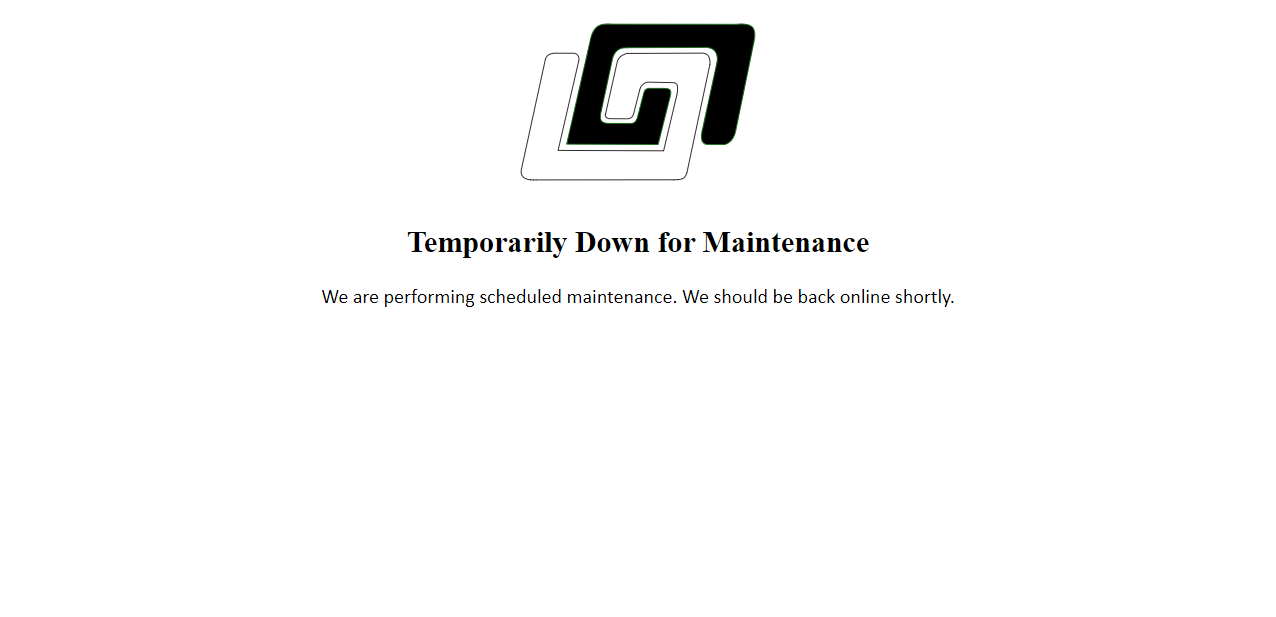
Visual Representation:

Maintenance page example

When to Use:

  1. Scheduled Maintenance: Use the Maintenance Page when you have planned system updates, upgrades, or any other maintenance activities that require partial or full system downtime.
  2. Unexpected Downtime: Although primarily for scheduled activities, the Maintenance Page can also be used in the event of unexpected issues that cause system unavailability.

Implementation Steps:

  1. Plan the Maintenance: Coordinate to identify maintenance window.
  2. When ready activate the page: At the scheduled start time, redirect users to the maintenance page.
  3. Monitor Progress: Keep track of maintenance activities.
  4. Deactivation: Once maintenance is complete, deactivate the Maintenance Page and restore normal access.

Forced Logout Web Page

Purpose:

The Forced Logout Communication Page is used to inform users when they have been forcibly logged out of their accounts. This can occur for various reasons, including security concerns, session timeouts, or policy updates.

URL:

https://staticassets.mysembra.com/error-pages/forced-logout.html

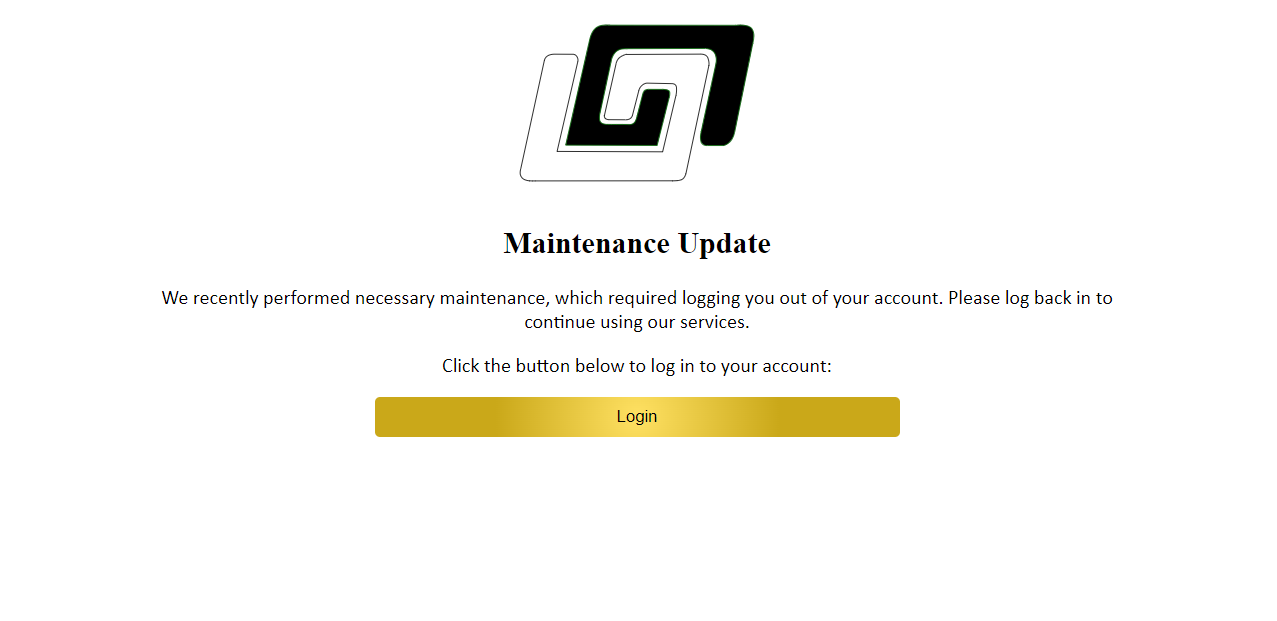
Visual Representation:

Forced logout page example

When to Use:

  1. Security Issues: When a security threat is detected, and immediate user logout is necessary to protect user data.
  2. Session Management: : For session expirations or timeouts where users need to re-authenticate.
  3. Policy Changes: When updates to terms of service or privacy policies require users to accept new terms before continuing.

Implementation Steps:

  1. Identify the need: Determine the reason for the forced logout and prepare the communication content.
  2. Content Preparation: Create clear and concise content for the Forced Logout Communication Page, including:
    • The reason for the forced logout.
    • Steps the user needs to take to log back in.
    • Any additional actions required, such as password resets or acceptance of new policies.
    • Contact information for support if users encounter issues.
  3. Trigger the Logout: Implement the forced logout process and redirect users to the communication page.
  4. Monitor User Feedback: Keep track of user inquiries and feedback to address any issues promptly.
  5. Follow-up Communication: If necessary, follow up with users via email or other communication channels to ensure they understand the situation and can regain access smoothly.

404 Web Page

Purpose:

The 404 page is designed to inform users that the page they are trying to reach cannot be found. This helps in maintaining a positive user experience by providing a clear and helpful message instead of a generic browser error. It can also offer navigation options to guide users back to the main content of the website.

404 URL:

https://staticassets.mysembra.com/error-pages/404.html

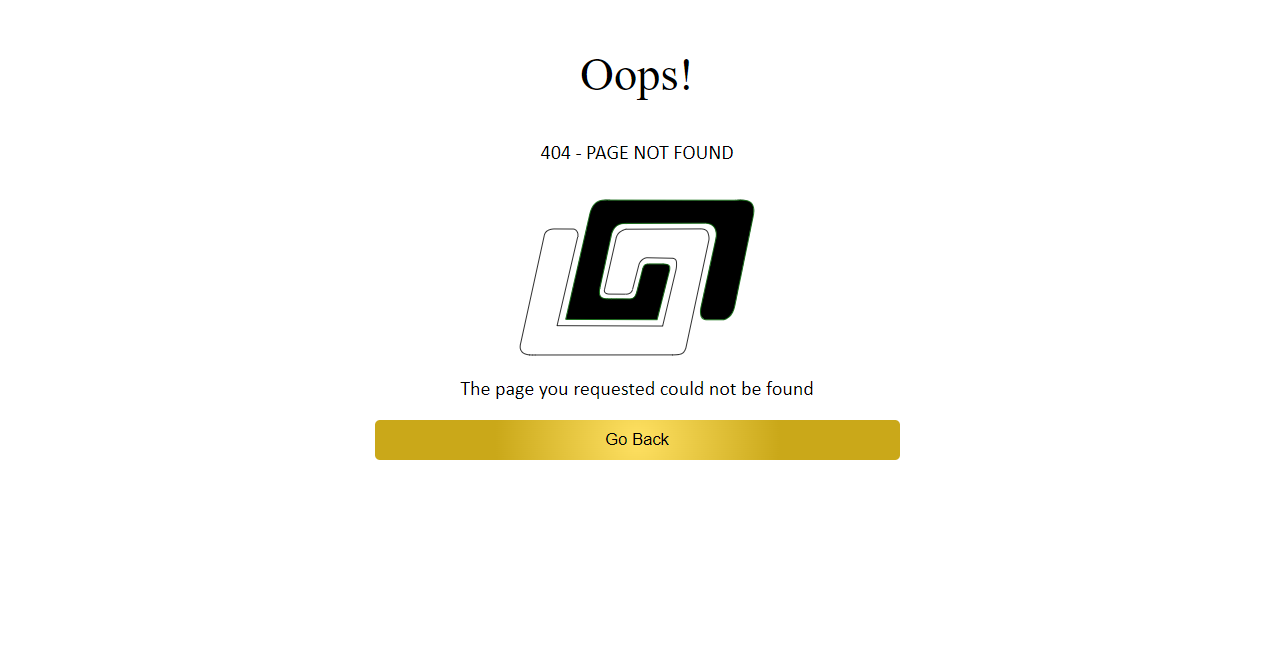
Visual Representation:

Forced logout page example

When to Use:

  1. The user navigates to a URL that does not exist on the website.
  2. The URL has been mistyped or incorrecctly linked from another page.
  3. A page has been removed or moved without a proper rediret in place.

Implementation Steps:

  1. Identify the Need: Determine the situations where a 404 page will be displayed.
  2. Content Preparation: Create clear and concise content for the 404 page, including:
    • A messsage indicating that the page could not be found
    • Suggestions for what users can do next